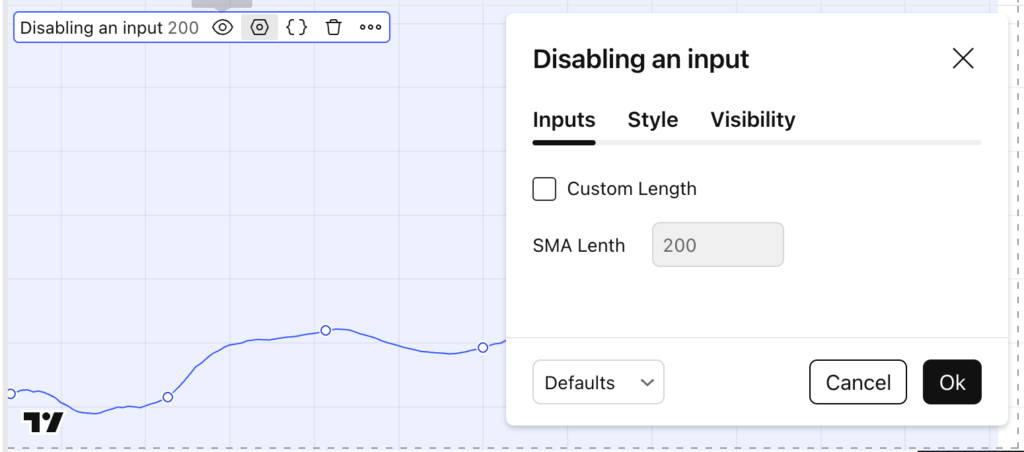
Pine Script v6 lets you conditionally enable or disable an input in the settings panel based on another input (like a checkbox). This is perfect for building clean indicators where users only see (and can edit) advanced settings when they actually need them.
In this tutorial, you’ll learn how to use the active parameter in input.*() to toggle inputs on/off—using a simple moving average (SMA) length example.
Why disable inputs in Pine Script?
Disabling inputs improves usability and reduces user error:
- Keeps your indicator settings minimal and beginner-friendly
- Hides advanced options until they’re needed
- Prevents confusion (“What is this setting for?”)
- Makes your scripts feel more professional and polished
Common use-cases:
- “Use custom length” checkbox that unlocks a length field
- “Enable filters” toggles that unlock RSI/ATR thresholds
- “Use higher timeframe confirmation” toggle that unlocks timeframe inputs
The idea: one input controls another input
We’ll create:
- A checkbox: Custom Length
- A numeric input: SMA Length, only editable when the checkbox is enabled
- A fallback: if the checkbox is off, we use the default value (10)
Here’s your script:
// This Pine Script® code is subject to the terms of the Mozilla Public License 2.0 at https://mozilla.org/MPL/2.0/
// © QuantNomad

//@version=6
indicator("Disabling an input")

checkbox = input.bool(false, title = "Custom Length")
len      = input.int(10, title = "SMA Lenth", active = checkbox)

sma_len = checkbox ? len : 10

sma = ta.sma(close, sma_len)

plot(sma)
Step-by-step explanation
1) Create a checkbox input
checkbox = input.bool(false, title = "Custom Length")
input.bool() creates a true/false checkbox in the indicator settings
Default is false, meaning “custom length is off” initially
2) Conditionally enable another input with active parameter
len = input.int(10, title = "SMA Lenth", active = checkbox)
This is the key line.
input.int()creates a number input (integer)active = checkboxmeans:- when
checkbox == true→ the user can edit the SMA length - when
checkbox == false→ the input is disabled in the UI
- when
So the SMA Length field becomes “grayed out” until users enable Custom Length.
3) Use a conditional value in your calculations
Even when an input is disabled, it still exists as a variable. But you usually want logic like:
sma_len = checkbox ? len : 10
That way:
- If custom length is enabled → use the user’s
len - Otherwise → force the default
10
4) Compute and plot the SMA
sma = ta.sma(close, sma_len)
plot(sma)
You now have an SMA that uses either:
- a fixed default length, or
- a user-defined length when enabled
The result will look like that:

Best practices (so it scales to real indicators)
Use a constant default to avoid duplication
Right now you have 10 in two places (input default + fallback). In bigger scripts, define it once:
DEFAULT_LEN = 10

checkbox = input.bool(false, "Custom Length")
len = input.int(DEFAULT_LEN, "SMA Length", active = checkbox)

sma_len = checkbox ? len : DEFAULT_LEN
This reduces mistakes when you later change defaults.
Combine with other conditional inputs
You can chain multiple “advanced” inputs under one toggle:
useFilter = input.bool(false, "Enable Filter")
rsiLen = input.int(14, "RSI Length", active = useFilter)
rsiLevel = input.int(50, "RSI Level", active = useFilter)
Keep UI clean with groups (optional)
For a nicer settings panel:
groupMain = "SMA Settings"
checkbox = input.bool(false, "Custom Length", group = groupMain)
len = input.int(10, "SMA Length", active = checkbox, group = groupMain)
Final thoughts
Using active In Pine Script v6, one of the simplest ways to make your indicators feel more professional is to use. It’s especially useful when you publish tools to a wider audience (public scripts, client indicators, paid products) because it keeps settings intuitive.
Follow me on TradingView and YouTube.