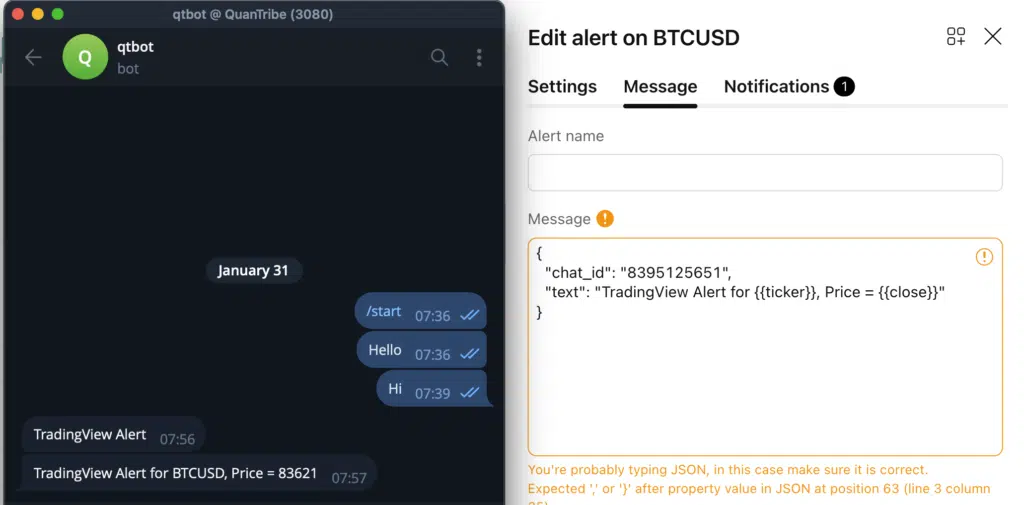
If you use TradingView alerts and want to receive them instantly on Telegram, you might think you need Zapier, paid bots, or third-party services.
Good news: you don’t.
TradingView can send alerts directly to Telegram using native webhooks, completely free, with no intermediaries.
In this tutorial, you’ll learn how to connect TradingView alerts to a Telegram bot step by step.
Why Send TradingView Alerts to Telegram?
Telegram is one of the most popular platforms for traders because it is:
- Fast and reliable
- Available on desktop and mobile
- Perfect for real-time trading alerts
- Easy to automate
By connecting TradingView alerts to Telegram, you can receive:
- Buy / sell signals
- Strategy alerts
- Price level notifications
- Custom Pine Script messages
All without email delays or paid automation tools.
How the TradingView → Telegram Connection Works
The setup relies on three simple components:
- TradingView alerts
- TradingView webhooks
- Telegram Bot API
TradingView sends a webhook (HTTP request) directly to Telegram’s API endpoint. Telegram then delivers the message to your chat, group, or channel.
No third-party servers. No subscriptions.
Step 1 – Create a Telegram Bot (BotFather)
Telegram bots are created using the official BotFather bot.
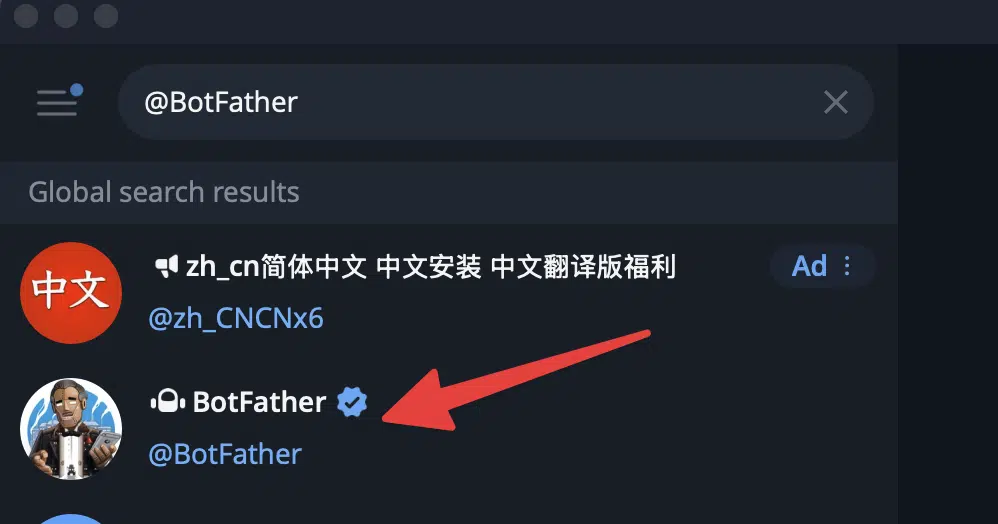
Open Telegram and search for @BotFather:
Start a chat and type /start, then create a new bot with /newbot command.
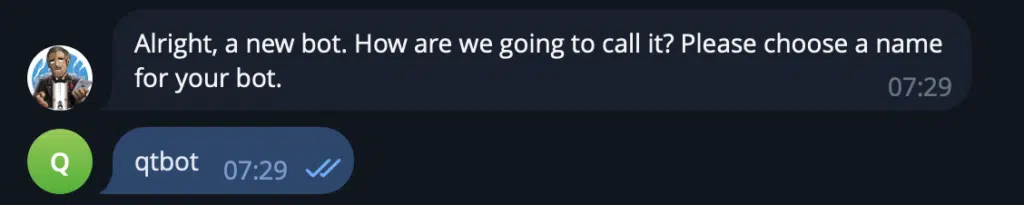
Next choose a bot name (display name) and username (must end with bot).

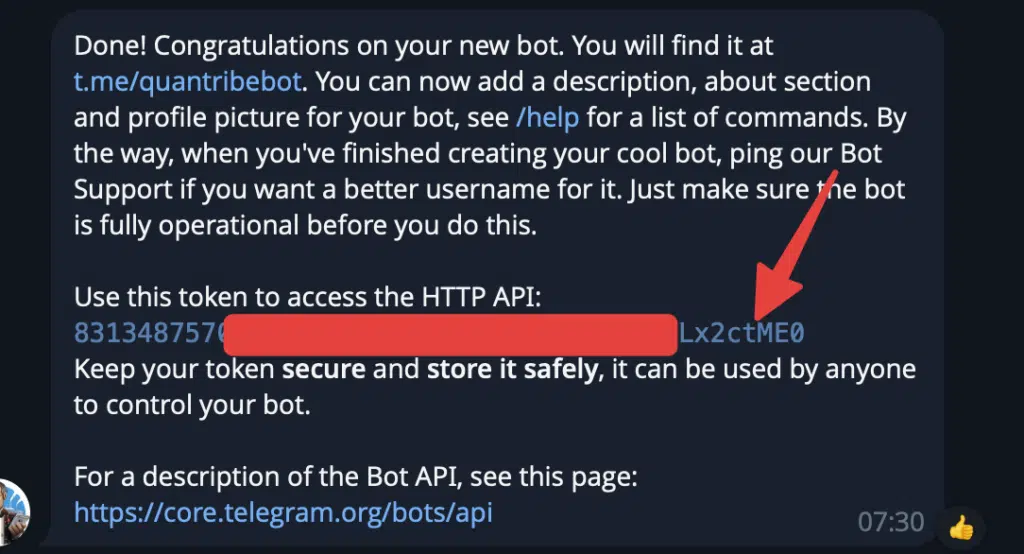
Once created, BotFather will give you a Bot Token.
📌 Save this token — you’ll need it later.
Step 2 – Get Your Telegram Chat ID or Channel ID
Your TradingView alert needs to know where to send the message.
Option A: Private Chat
Start a conversation with your bot and write to it any message:
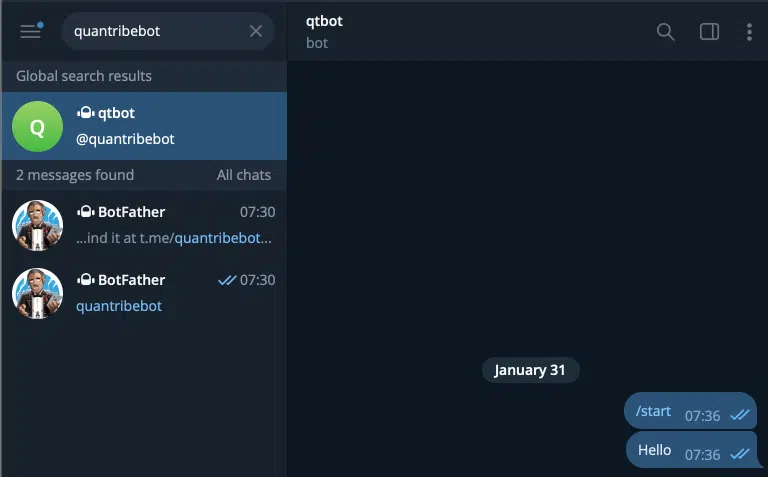
Use a Telegram “getUpdates” request to retrieve your chat ID. Open this URL in your browser (replace <BOT_TOKEN>) with your token:
https://api.telegram.org/bot<BOT_TOKEN>/getUpdates
Get a number from the “id” parameter of the chat entry. This is be your chat id for private messages.

Option B: Group
Do the same, but first invite your bot to the group and write there a message.
📌 Important
For channels, chat IDs usually look like: -100XXXXXXXXXX
Step 3 – Create a TradingView Alert
Now let’s configure TradingView.
- Open any chart on TradingView
- Click Create Alert
- Choose:
- Indicator or strategy
- Alert condition
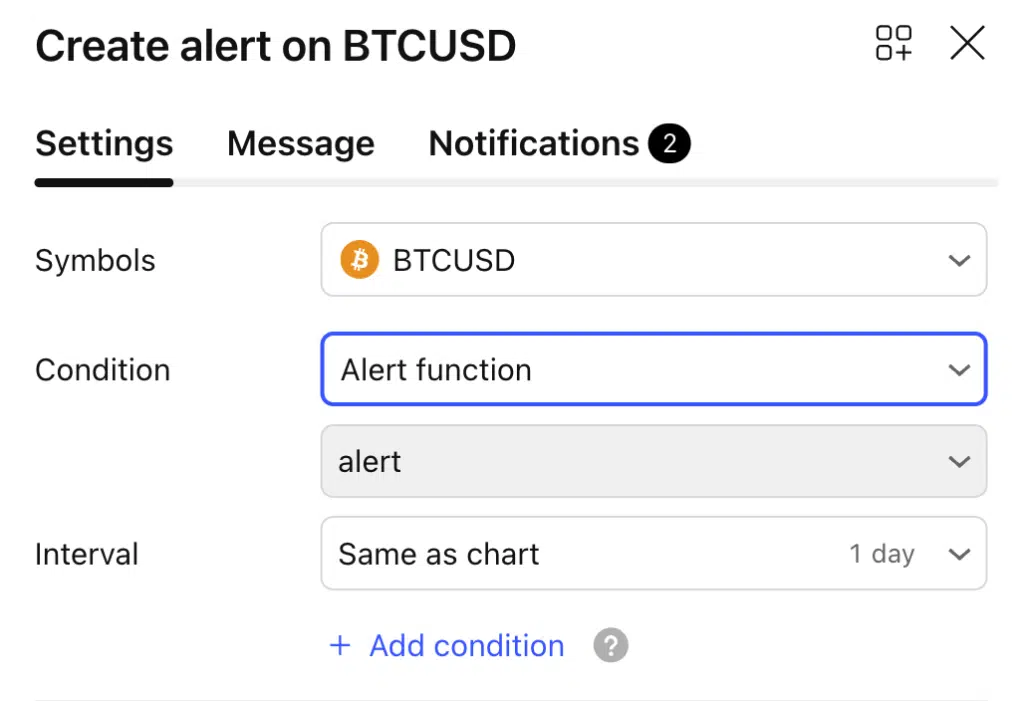
Next switch to Notifications, select Webhook URL and fill your unique API request for your bot.
Telegram provides a simple HTTP endpoint to send messages.
Webhook URL format:
https://api.telegram.org/bot<BOT_TOKEN>/sendMessage
Example
https://api.telegram.org/bot123456:ABCDEF/sendMessage
Paste this URL into the Webhook URL field in TradingView. Your settings should look something like that:
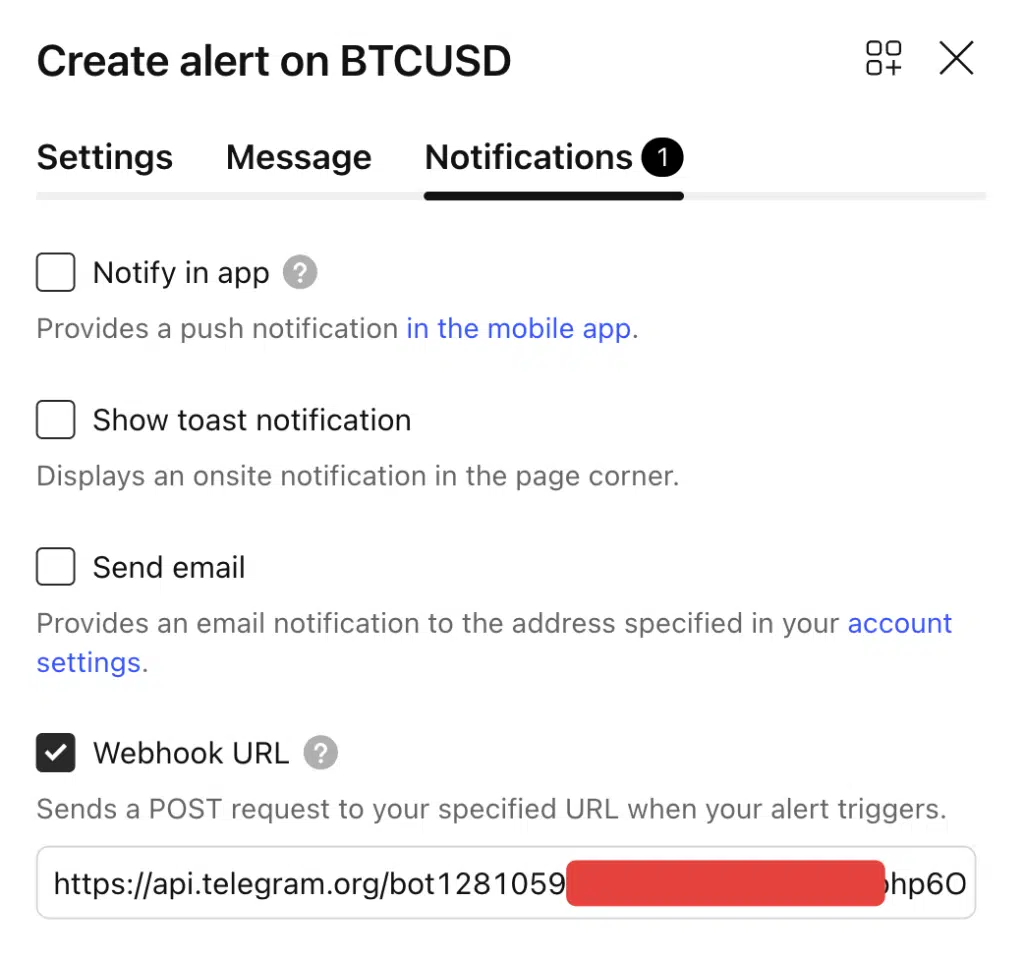
Step 5 – Webhook JSON Message Body
This is where TradingView sends the message content. Switch to the Message tab and compose the request to the Telegram API:
Example JSON payload:
{
  "chat_id": "CHAT_ID",
  "text": "TradingView Alert for {{ticker}}, Price = {{close}}"
}
What’s happening here:
chat_id→ Where the message goestext→ Message text sent to Telegram{{ticker}},{{close}},{{time}}→ TradingView placeholders
📌 TradingView automatically replaces placeholders when the alert triggers.
Step 6 – Test the Alert
Before relying on it for trading:
- Save the alert
- Trigger it manually or wait for the condition
- Confirm the message arrives in Telegram
If it works — you’re done 🎉

Common Errors & How to Fix Them
❌ Bot sends nothing
- Bot not added to the chat or channel
- Bot has no permission to post
❌ Invalid JSON
- Missing quotes
- Trailing commas
- Incorrect brackets
❌ Wrong chat ID
- Private chat ID ≠ group ID
- Channel IDs must include
-100
❌ Webhook checkbox not enabled
- TradingView will silently ignore the payload
Advanced Tips (Optional but Useful)
- Add emojis for Buy / Sell signals
- Use Pine Script to customize alert messages
- Send alerts from strategies, not just indicators
- Format messages using line breaks (
\n) - Send alerts to multiple Telegram chats
Limitations of the Free Native Method
This approach is powerful, but keep in mind:
- No retry mechanism if Telegram is temporarily unavailable
- No alert history storage
- No filtering or routing logic
For most traders, this is more than enough.
Final Thoughts
Connecting TradingView alerts to Telegram does not require any paid tools.
With:
- TradingView webhooks
- A Telegram bot
- A simple JSON payload
You get fast, reliable, and free trading alerts directly on your phone or desktop.
Follow me on TradingView and YouTube.