Introduction
When building indicators or strategies in Pine Script v6, usability matters just as much as logic.
A common issue with TradingView scripts is a cluttered inputs panel, where every parameter appears on its own line.
Starting with Pine Script v6, the inline parameter allows you to align multiple inputs on the same row, making your settings cleaner, more intuitive, and more professional.
In this tutorial, you’ll learn how to use the inline parameter in Pine Script v6, with practical examples and best practices.
✅ This tutorial is written for Pine Script v6 and works with the latest version of TradingView.
What Is the inline Parameter in Pine Script v6?
The inline parameter lets you place multiple inputs on a single horizontal line in the indicator or strategy settings.
Inputs that share the same inline value will be displayed together, visually grouping related parameters.
This is especially useful for:
- Length + source
- Checkbox + value
- Color + width
- Min / max ranges
Basic inline Syntax
input.int(14, title="Length", inline="line1")
input.source(close, title="Source", inline="line1")
🔹 Any inputs using the same inline identifier ("group1") will appear on the same row.
Example: Inline SMA Length and Source
// This Pine Script® code is subject to the terms of the Mozilla Public License 2.0 at https://mozilla.org/MPL/2.0/
// © QuantNomad

//@version=6
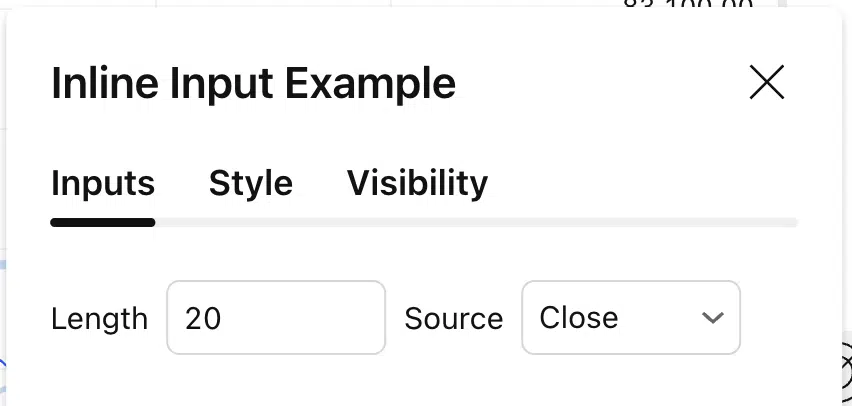
indicator("Inline Input Example", overlay=true)

length = input.int(20, title="Length", inline="sma")
source = input.source(close, title="Source", inline="sma")

sma = ta.sma(source, length)
plot(sma)
Result in the Settings Panel
- Length and source appear side by side
- Logical grouping is instantly visible
- The inputs panel uses less vertical space
Inline Inputs with a Checkbox Toggle (Common v6 Pattern)
A very common Pine Script v6 pattern is pairing a checkbox with a configurable value.
// This Pine Script® code is subject to the terms of the Mozilla Public License 2.0 at https://mozilla.org/MPL/2.0/
// © QuantNomad

//@version=6
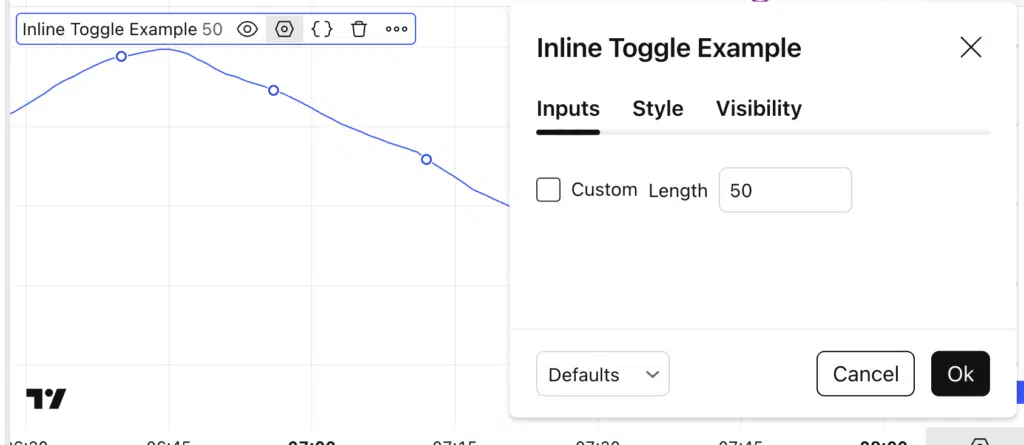
indicator("Inline Toggle Example")

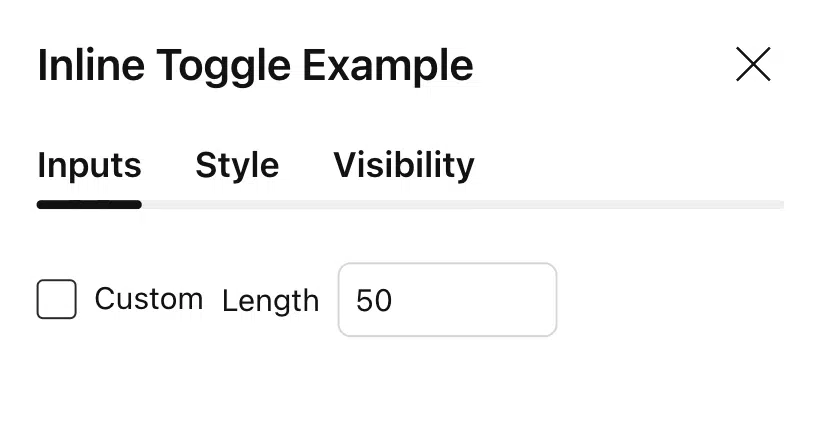
useCustom = input.bool(false, title="Custom", inline="len")
customLen = input.int(50, title="Length", inline="len", active=useCustom)

len = useCustom ? customLen : 20
plot(ta.sma(close, len))
Why This Pattern Works Well
- The checkbox and value are visually connected
- The relationship is obvious to the user
- Cleaner and more intuitive than stacked inputs
Best Practices for inline in Pine Script v6
✅ Do
- Use short, meaningful inline keys (
"sma","style","range") - Group only closely related inputs
- Combine
inlinewithgroupfor large scripts
❌ Avoid
- Putting too many inputs on one line
- Reusing the same
inlinevalue for unrelated settings - Using long titles that break visual alignment
inline vs group in Pine Script v6
| Feature | Purpose |
|---|---|
group | Organizes inputs into sections |
inline | Aligns inputs horizontally |
💡 Best UX approach:
Use group to create sections, and inline to format inputs inside each section.
Final Thoughts
The inline parameter in Pine Script v6 is a small feature that dramatically improves the user experience of your TradingView scripts.
If you publish indicators publicly or build tools for clients, using inline inputs helps your work feel:
- Cleaner
- More intuitive
- More professional
Mastering these UI details is what separates quick scripts from polished trading tools
Follow me on TradingView and YouTube.