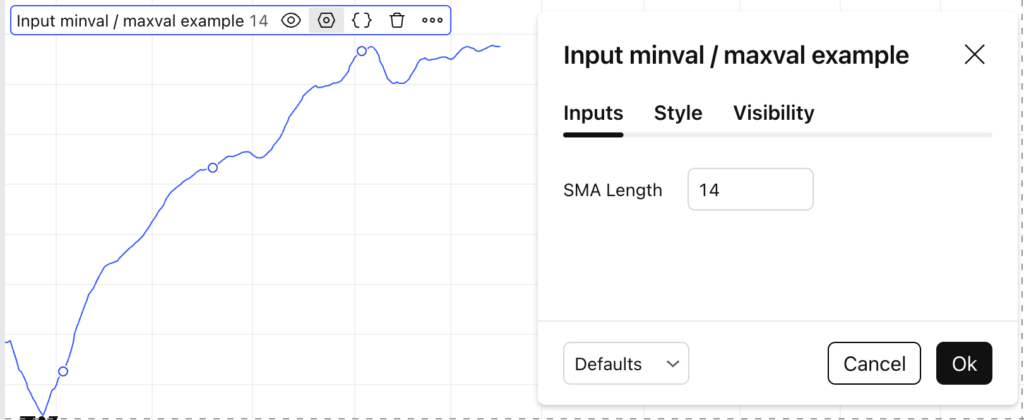
When creating indicators or strategies in Pine Script v6, controlling user inputs is just as important as writing correct calculations.
The minval, maxval, and step parameters allow you to validate inputs, prevent errors, and improve the user experience.
This tutorial shows how and why to use them.
Why Use Minval, Maxval, and Step?
Without constraints, users can:
- Enter negative lengths
- Use unrealistic values
- Break calculations or visuals
With constraints, you:
- Prevent invalid inputs
- Make scripts easier to use
- Reduce support questions (“Why is my indicator broken?”)
In short: better inputs = better scripts.
Basic Example: Limiting an Integer Input
// This Pine Script® code is subject to the terms of the Mozilla Public License 2.0 at https://mozilla.org/MPL/2.0/
// © QuantNomad

//@version=6
indicator("Input minval / maxval example")

length = input.int(
     defval = 14,
     title  = "SMA Length",
     minval = 1,
     maxval = 200
)

plot(ta.sma(close, length))
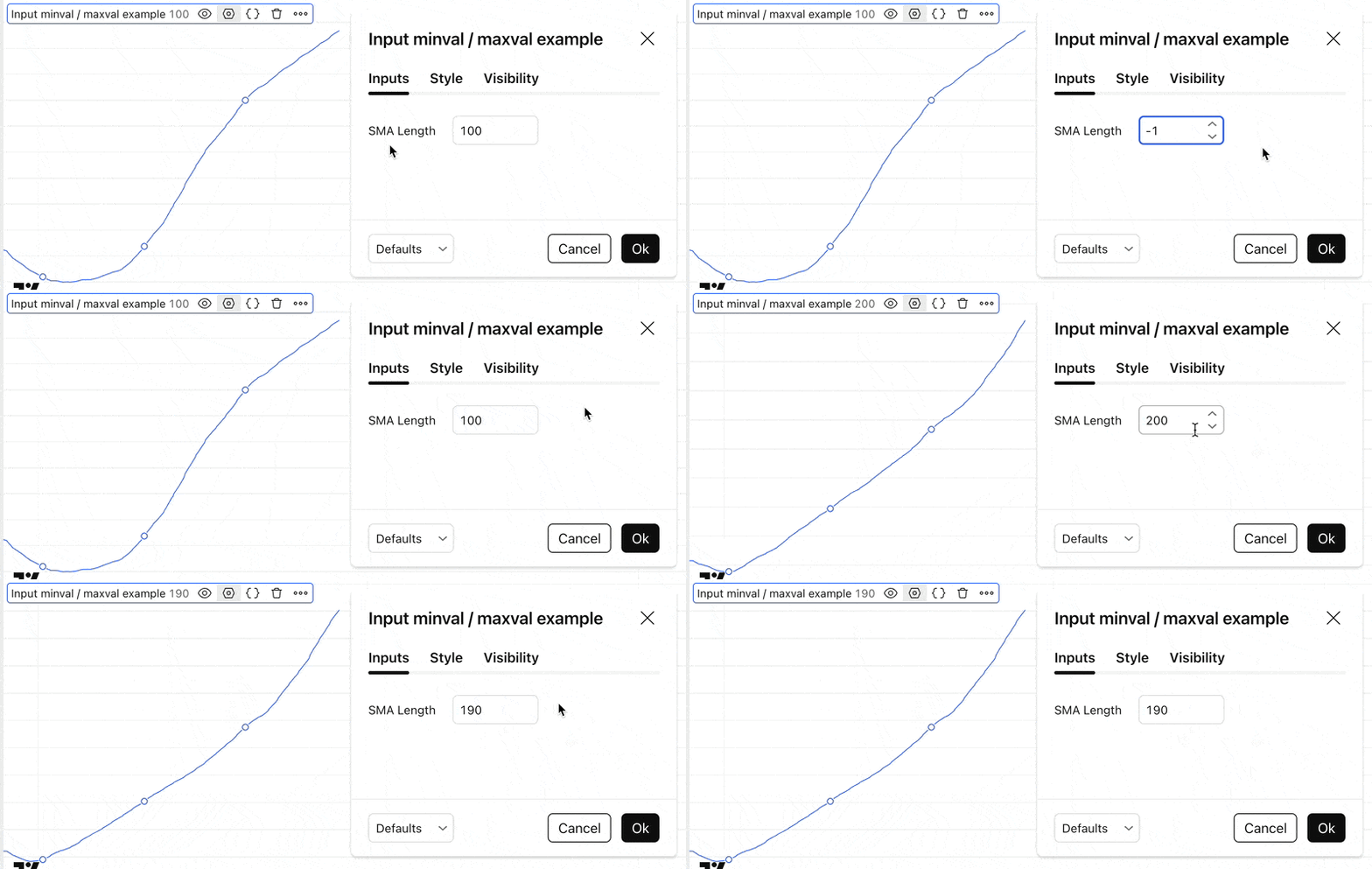
What This Does
minval = 1→ no zero or negative lengthsmaxval = 200→ prevents unrealistic smoothing- The user can only select values in that range
Using step to Control Input Precision
The step parameter defines how much the value changes when clicking the arrows or dragging the slider.
mult = input.float(
     defval = 1.5,
     title  = "ATR Multiplier",
     minval = 0.1,
     maxval = 10,
     step   = 0.1
)
Why Step Matters
- Cleaner values (no weird decimals like
1.473829) - Better UX for sliders
- More consistent parameter testing
Common Use Cases of Minval, Maxval, and Step in Pine Script Inputs (v6)
| Parameter | Typical Use |
|---|---|
minval | Lengths, periods, multipliers |
maxval | Safety limits, performance caps |
step | Percentages, multipliers, tuning |
Examples:
- RSI length:
minval = 2 - ATR multiplier:
step = 0.1 - Risk %:
maxval = 5
Best Practices
✔ Always use minval for lengths
✔ Use step for float inputs
✔ Keep ranges realistic
✔ Think like a user, not a coder
Your future self (and your users) will thank you.
Final Thoughts
Input constraints are a small detail with a big impact.
They make your Pine Script indicators:
- Safer
- More professional
- Easier to use
If you publish scripts or sell indicators, this is non-optional.
Follow me on TradingView and YouTube.